Turn on tracking: frequency, engines and answers
How to start tracking a project, choose daily or weekly runs and the AI engines, read what a setup costs in answers, and check every run.
Updated
On this page
Tracking asks your prompts of AI engines on a schedule and keeps every answer. This article covers how to turn it on, how often it runs, how answers are counted against your plan, and how to check that each run went through.
Turn tracking on
- Open the project's Prompts tab in Settings. The tracking card is at the top.
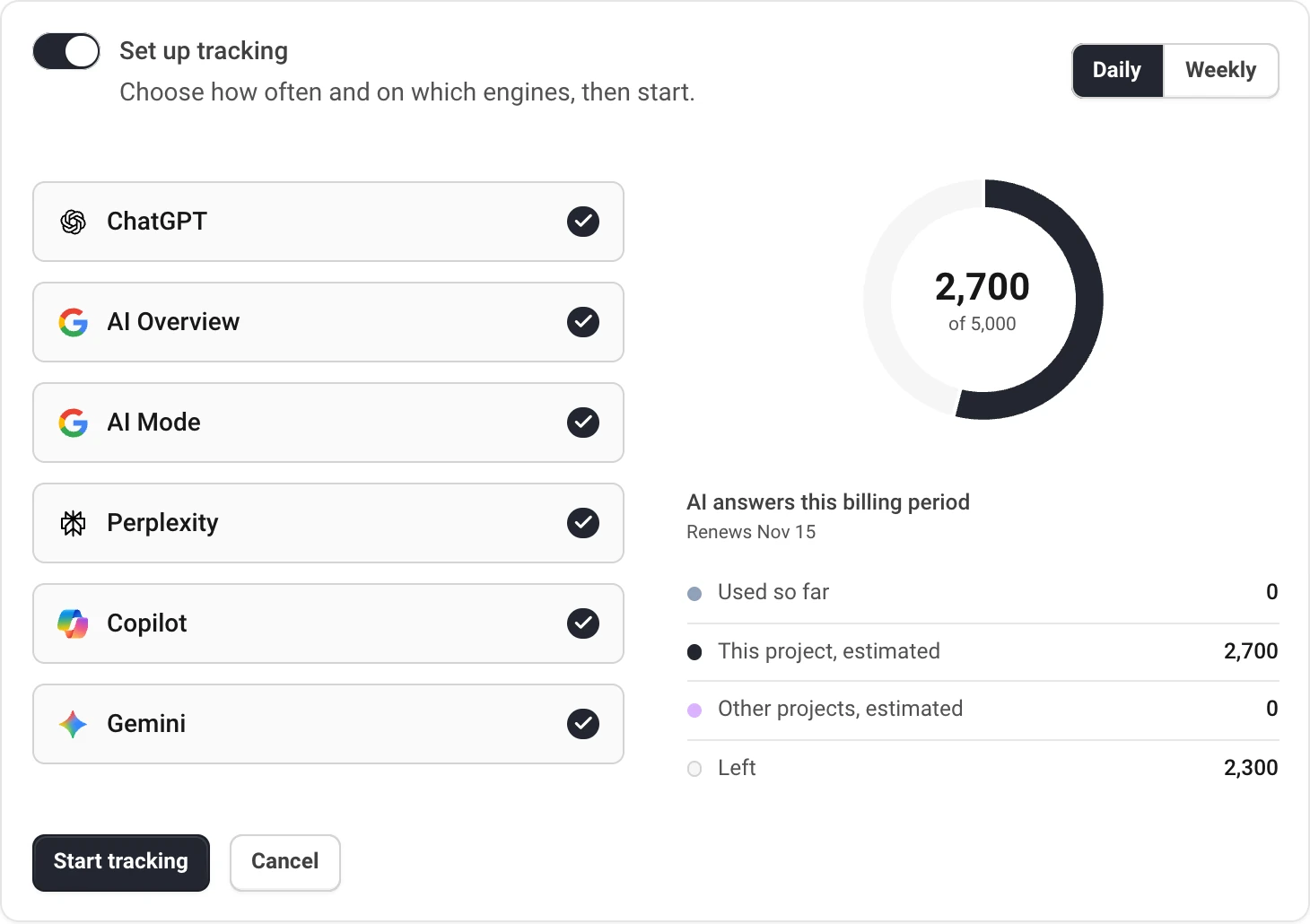
- Turn on the toggle. Nothing is saved yet: the card opens with the choices below.
- Choose Daily or Weekly, and the engines to ask.
- Check the answers this setup needs, and choose Start tracking.
The first run starts within seconds, so the dashboards show your numbers the same day; see Overview: visibility, position and sentiment for how to read them. Tracking needs an active plan, at least one tracked prompt and at least one engine. Editors and admins can turn it on.
How often it runs
- Daily. A run every day. Scheduled runs are planned at 06:00 UTC.
- Weekly. A run every seven days, on the weekday tracking started. The card says which, for example "Runs every Thursday".
To change the schedule or the engines later, change them on the card and choose Save changes. The next run uses the new setup. Turning the toggle off stops tracking at once; the history stays.
The six AI engines
AskWatch asks the answers people actually see: ChatGPT, AI Overview and AI Mode in Google, Perplexity, Copilot and Gemini. Every plan includes all six. Untick an engine to stop asking it, for example one your market does not use; that saves its answers.
Engines are asked in the language of the project's business profile.
How answers are counted
One AI answer is one engine's reply to one prompt on one run. Plans are sized in answers a month, so a setup's cost is:
- prompts × engines × runs. 10 prompts on six engines is 60 answers a run: about 1,830 a month daily, or about 260 weekly.
- Only answers that arrive count. If an engine fails to answer, that answer is not counted.
The ring on the card shows the current billing period: answers Used so far, what This project and your Other projects will still need until the period renews, and what is Left. A red part means the setup needs more than your plan includes. What happens then depends on your balance and overage settings; see AI answers, balance and overage.
Check your runs
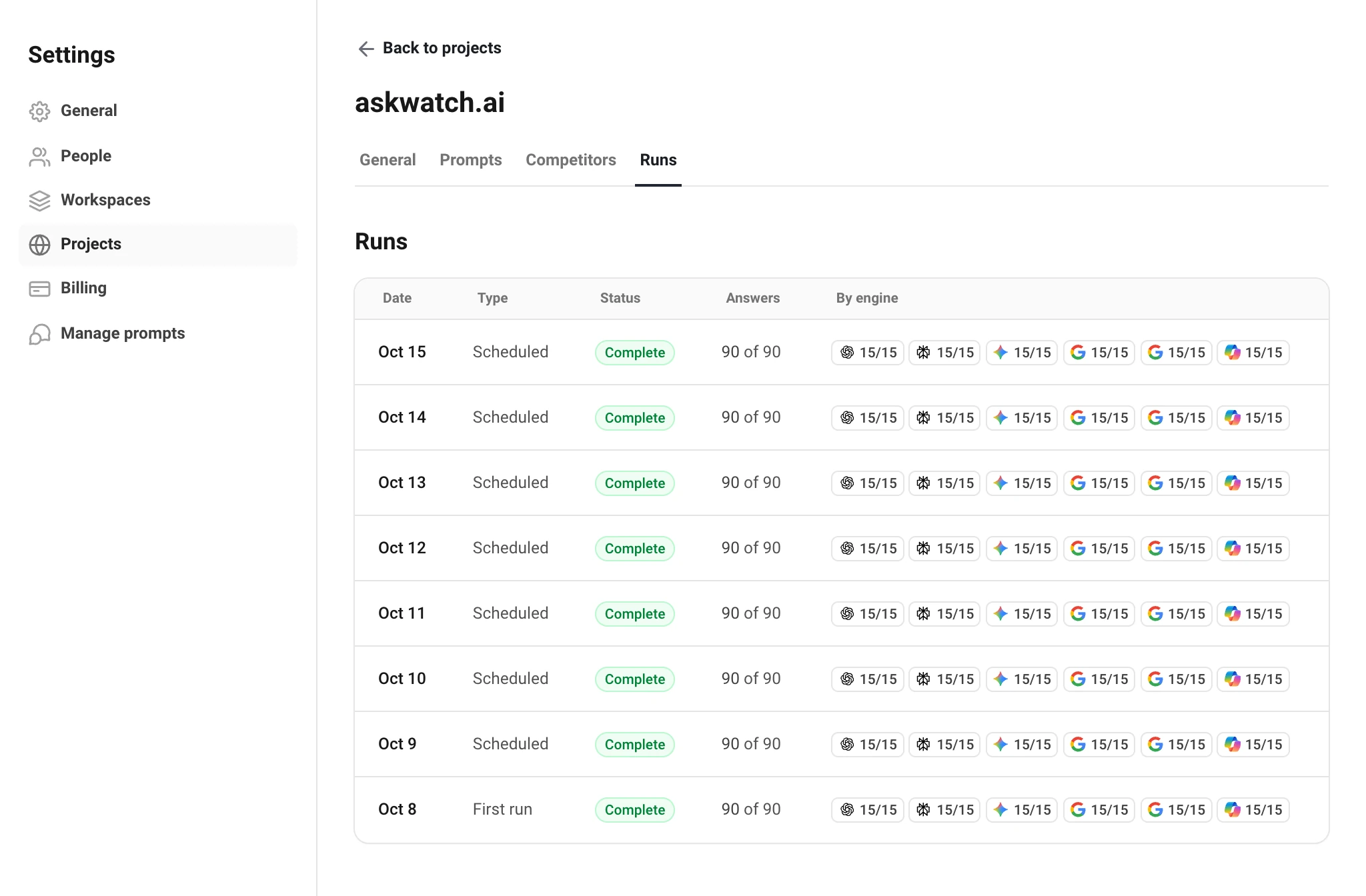
The project's Runs tab lists every run: its date and type, how many answers arrived out of how many were asked, and the count for each engine. Hover an engine to see how many failed.
| Status | What it means |
|---|---|
| Complete | 90% or more of the answers arrived. |
| Incomplete | At least half arrived. The run is in the reports, and charts mark its points. |
| Not counted | Less than half arrived. An engine that got at least half of its own answers still adds them. |
| Running · Planned | The run is under way, or due later today. |
| Skipped: no answers left | The plan's answers ran out and the balance could not pay for the run. |
An answer that fails is asked again for up to six hours, so a run can finish later than it started. Answers that never arrive cost nothing.
Still have a question?
Write to hello@askwatch.ai. A person answers.