Add a website and set up a project
How to add a website to AskWatch: what we read from the site, how to check your brand and competitors, pick prompts and start tracking.
Updated
On this page
A project is one website you track. When you add one, AskWatch reads the site, finds your competitors and writes the prompts buyers ask AI assistants. You check what we found, pick the prompts and choose how often to track them. It takes a few minutes, and you can change everything later in the project's settings.
Add a website
- Open the project picker at the top of the sidebar and choose Add project. You can also use Add project in Settings → Projects, or on the Projects tab of a workspace.
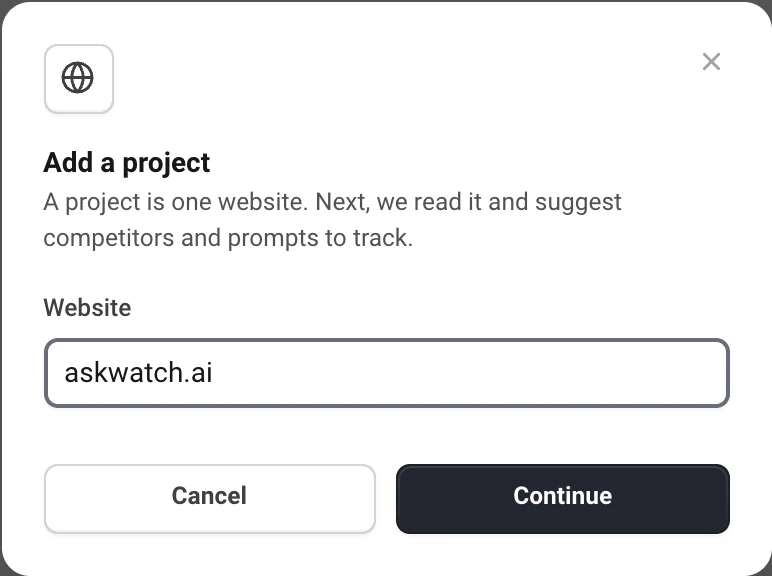
- Enter the website, like acme.com. If you have more than one workspace, pick the one the project goes to in Add to.
- Choose Continue.
Signing up for the first time works a little differently. If you started with a free check of your brand, your first organization, workspace and project are created from that check, with its brand, competitors and prompts. If you did not, AskWatch asks for your website on the Add your website screen and then opens the same setup.
We read the site
Setup opens on Reading: we read the site, look for competitors and start writing prompts. This takes about two minutes. You can leave the page, the work carries on, and setup moves to the next step by itself.
While setup is not finished, the project has a Set up label in the project picker, and opening it takes you back to the step you left. To drop it, use Discard at the top right: nothing has been tracked yet, so it is deleted at once.
Each person can have 10 sites read a day, and each organization 20. Past that, the project is still created, and you fill in the details by hand.
Check what we found
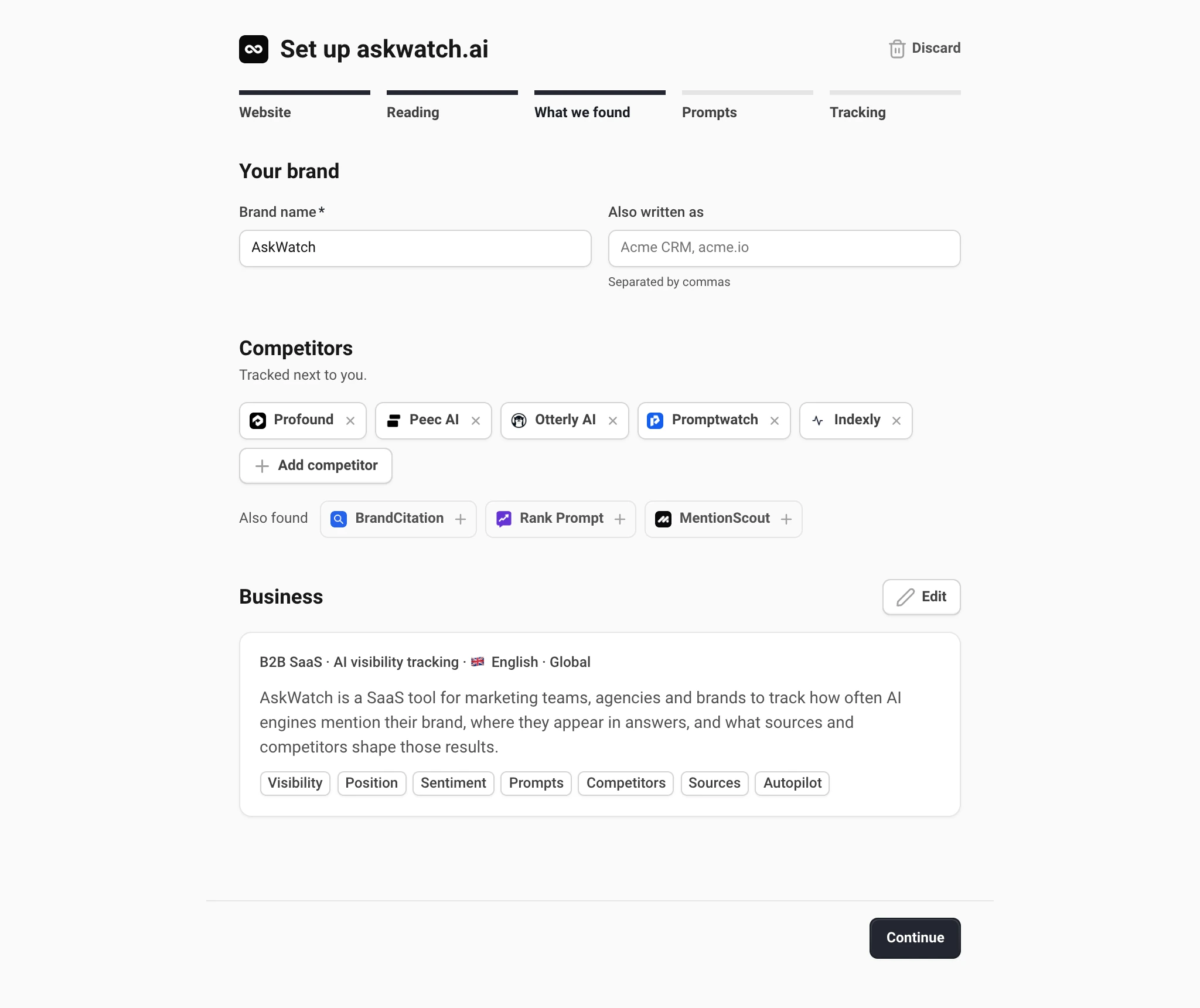
The What we found step shows three things. Correct anything that is off: the prompts are written from it.
- Your brand. The brand name AI answers should mention, and in Also written as the other ways it gets written, separated by commas (for example Acme CRM, acme.io). Every spelling counts as a mention of you.
- Competitors. The brands a buyer puts on the same shortlist. The main ones are already picked. Remove one with its cross, add a suggestion from Also found with its plus, or add your own with Add competitor.
- Business. What the business is: its kind, niche, language, market, description and products. Choose Edit to change it. Cities appear only for a local business, where the city changes what AI recommends.
If we could not read the site, the business form opens empty. Fill it in by hand: a few lines on what the business sells and to whom are enough.
Pick prompts
A prompt is a question a buyer asks an AI assistant, like "best CRM for small agencies". We write 20 from what you confirmed, and the first 10 are ticked.
- Tick and untick prompts to choose what is tracked.
- Add manually adds your own, one per line. They go to the top, already ticked.
- Suggest 10 more writes ten new prompts that are different from the ones on the list.
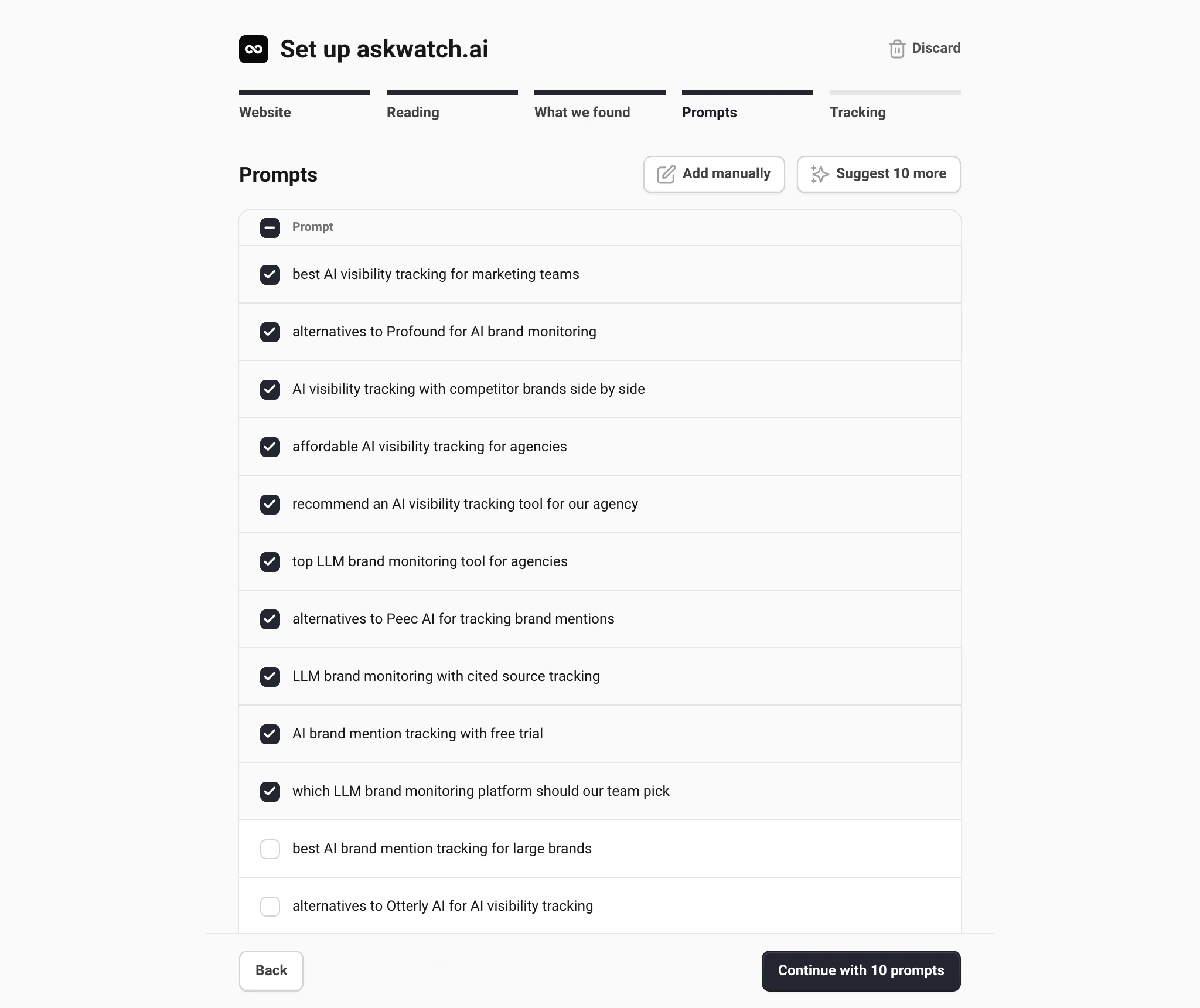
Choose Continue with N prompts. You can add, remove and change prompts at any time later; see Add, suggest and group prompts.
Choose how to track
The last step sets up tracking: Daily or Weekly, and the AI engines to ask. All six are on by default: ChatGPT, AI Overview, AI Mode, Perplexity, Copilot and Gemini.
Every run asks each ticked prompt of each engine you picked, and each reply is one AI answer. The ring shows how many answers this setup needs in the current billing period, next to what your plan includes.
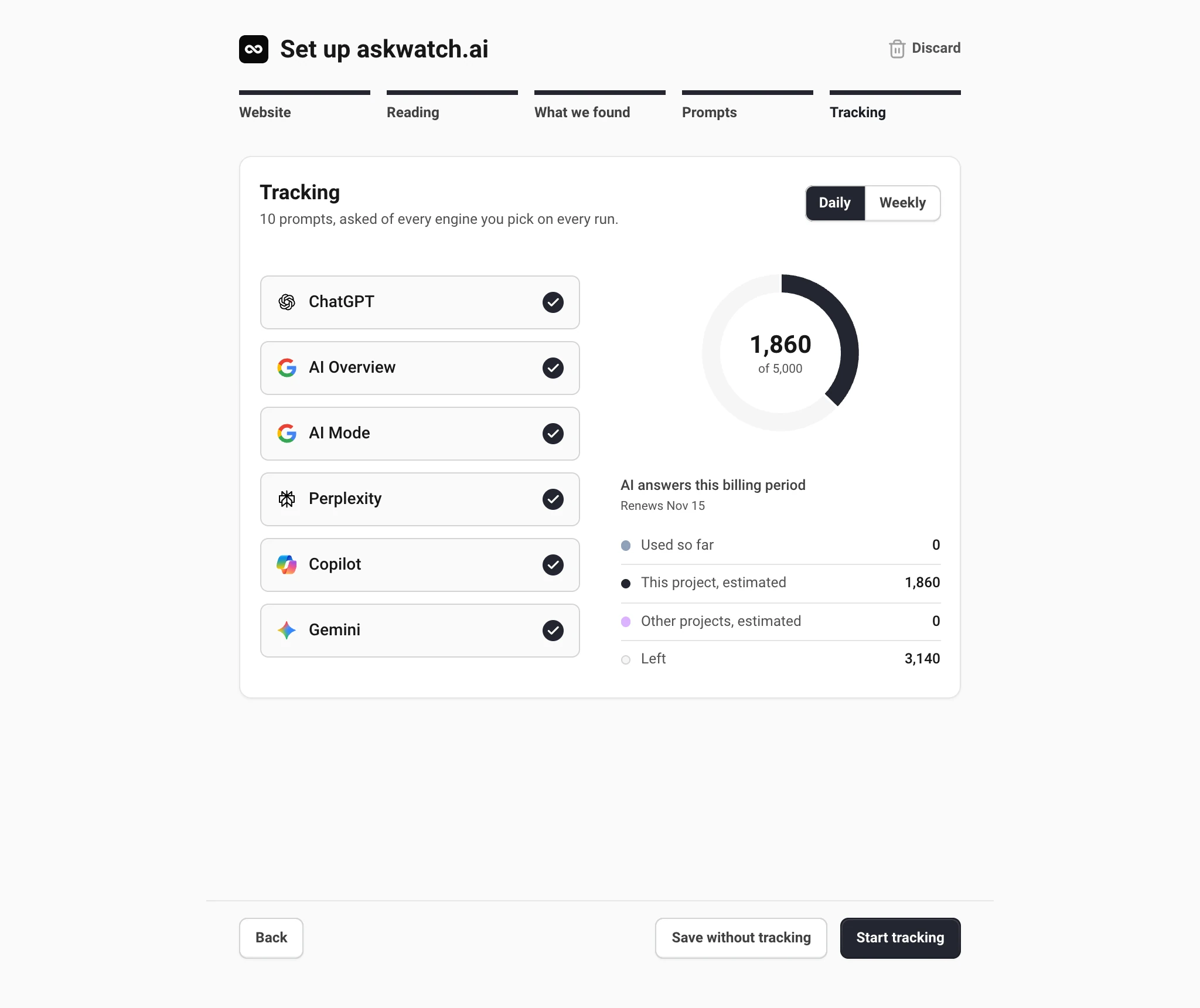
- Start tracking saves the prompts and starts tracking. The first run begins within seconds, and the dashboards fill with your own numbers.
- Save without tracking saves the project and its prompts, and opens the project's Prompts settings. Start tracking from there whenever you are ready.
Tracking runs on a paid plan. Without one, the step shows an estimate of the answers a month and a link to choose a plan, and Start tracking is not available yet. See Choose a plan.
Still have a question?
Write to hello@askwatch.ai. A person answers.