Change, downgrade or cancel your plan
Settings → Billing explained: changing the plan size, replacing the card, invoices, failed payments and cancelling.
Updated
On this page
Everything about paying for AskWatch is on one page: Settings → Billing. Everyone with a role on the organization can see it; the owner and people with the Billing role can change it. This article goes through the page, from changing the plan to cancelling it.
The Billing page
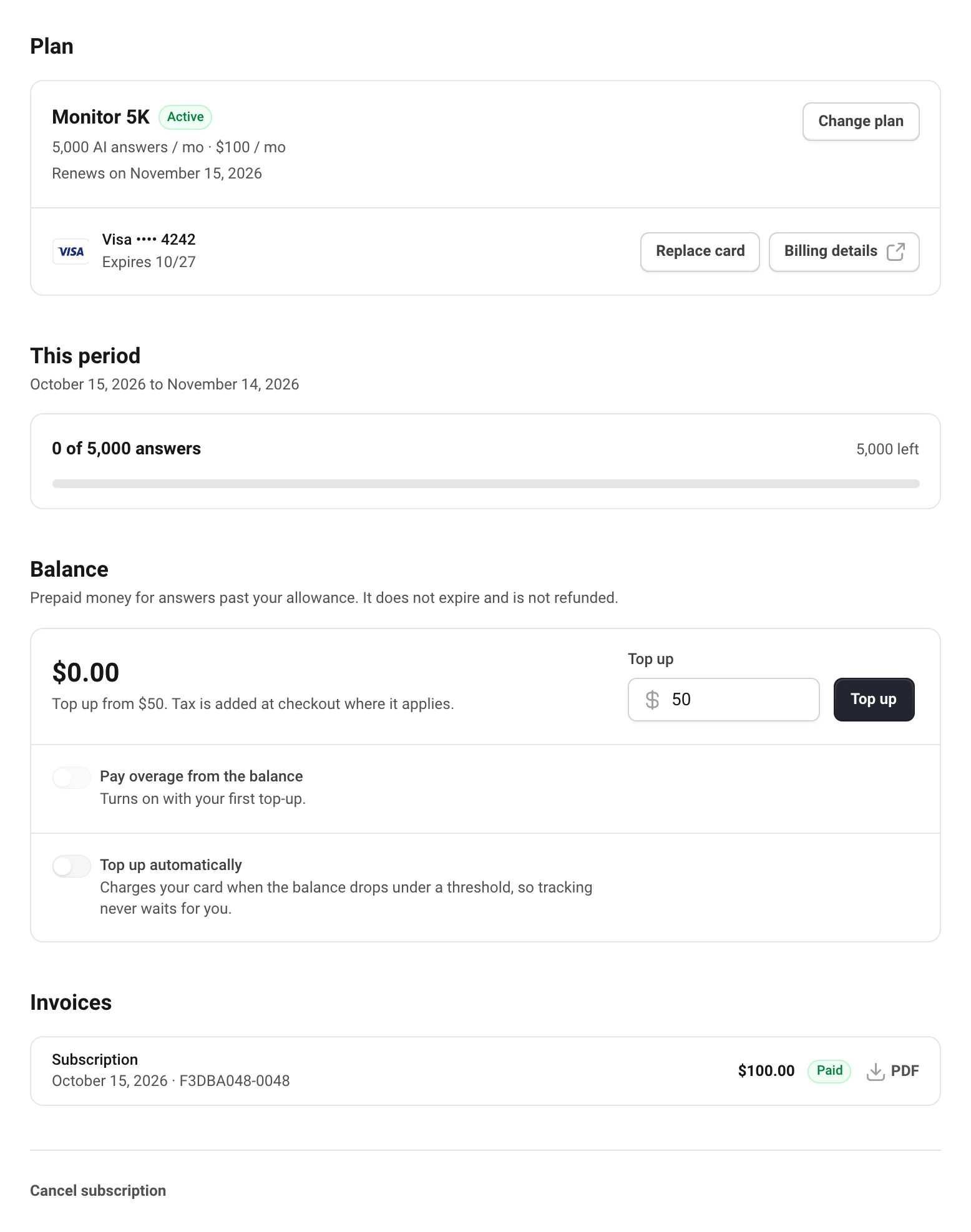
Open the account menu at the bottom of the sidebar and choose Billing. From the top:
- Plan: your plan, its status, the next renewal date, and the card on file.
- This period: answers used and left. See AI answers, balance and overage.
- Balance: top-ups, overage and automatic top-ups.
- Invoices: every subscription payment, plan change and top-up, with a PDF of each.
- Balance history and, at the bottom, Cancel subscription.
Change the plan size
Choose Change plan, pick another Monitor size and confirm.
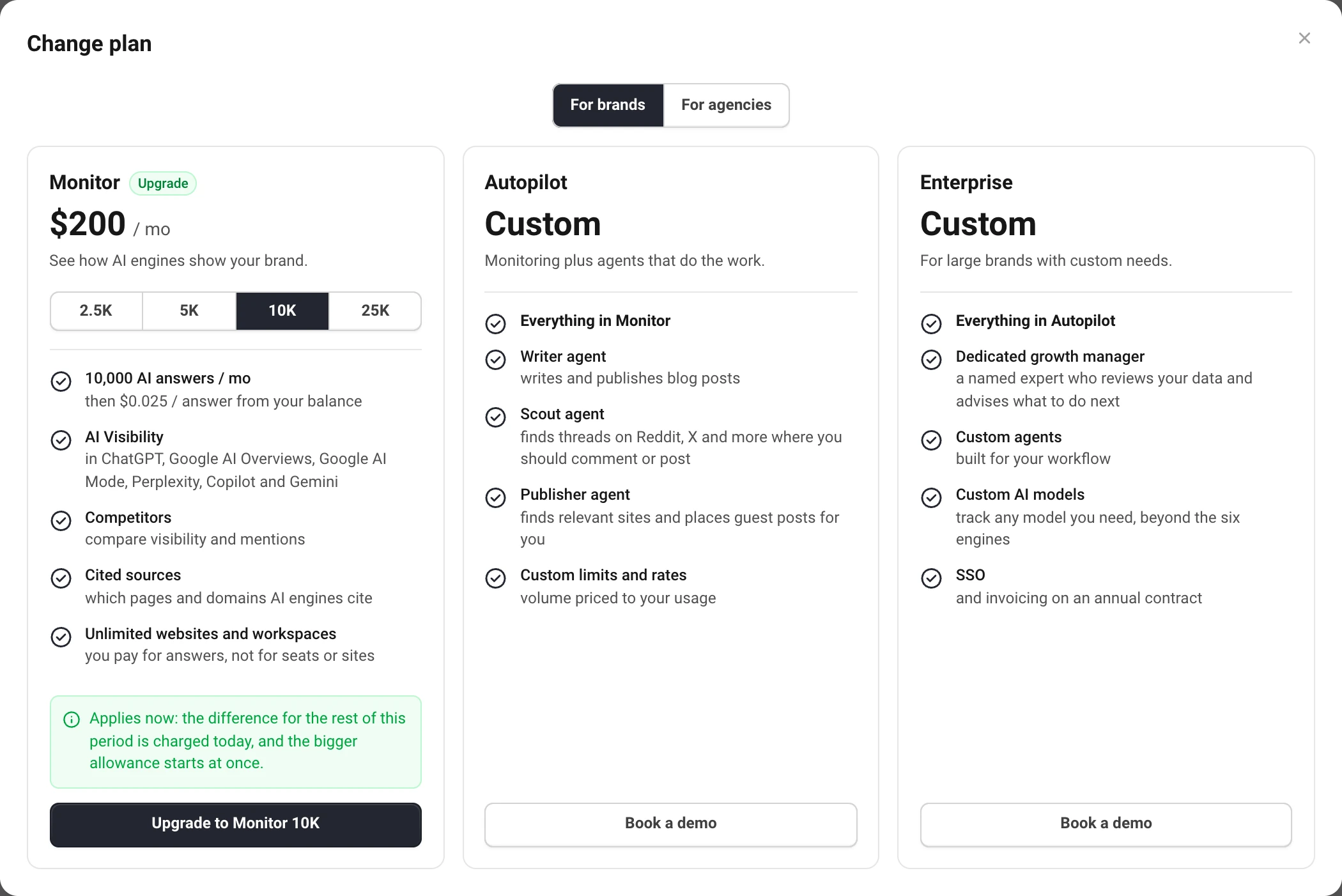
- Upgrade applies at once. The difference for the rest of the period is charged today, and the bigger allowance starts right away. If the card is declined, the plan stays as it was.
- Downgrade applies from your next renewal. Until then you keep the answers you paid for, and nothing is refunded for the current period. Billing shows Downgrade scheduled with the date; Cancel downgrade keeps your current size at no charge.
Autopilot, Enterprise and agency plans are set up with us: choose Book a demo, or write to hello@askwatch.ai.
Card, billing details and invoices
- Replace card opens Stripe's card form and brings you back when you are done. Billing warns you when the card has expired or expires before the next payment.
- Billing details opens Stripe's page for the company name, address and VAT ID on your invoices.
- Invoices lists every payment. Choose PDF for the invoice, or Pay now on one that is unpaid.
Prices are before tax. Tax is added where it applies, based on your address and VAT ID; a business in the EU outside Cyprus with a valid VAT ID is not charged VAT (reverse charge).
If a payment fails
If the card is declined at renewal, Billing shows Payment failed and we email the owner, admins and Billing. Tracking carries on while we retry the card over the next week. Replace the card and the next attempt goes through.
If no attempt succeeds within 7 days, the subscription ends and tracking stops. The tracking history is kept for 60 days after that, then deleted; projects, prompts and competitors stay either way. Choose a plan within those 60 days to carry on where tracking stopped.
Cancel your subscription
- At the bottom of Settings → Billing, choose Cancel subscription.
- Optionally tell us why, and choose Cancel subscription again.
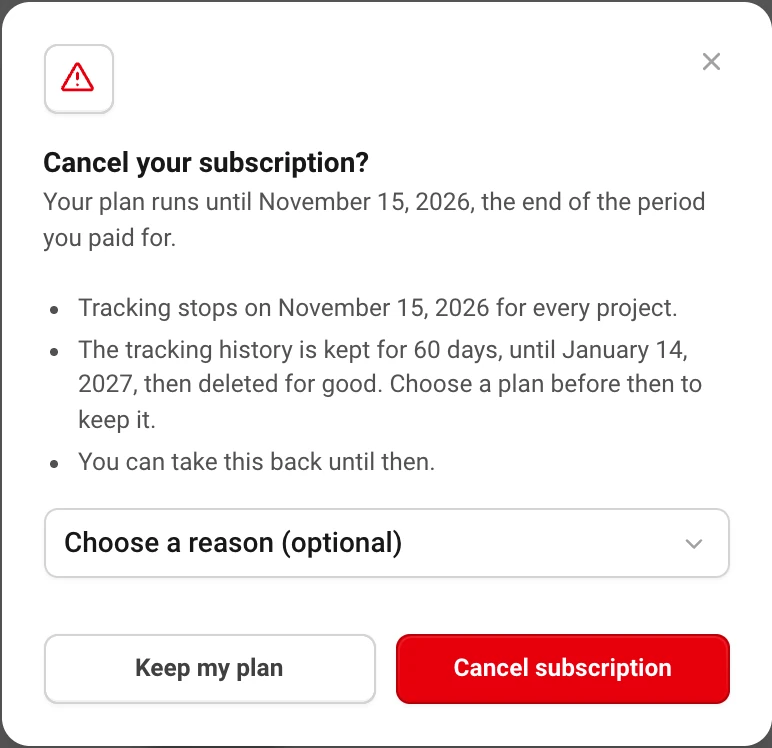
The plan runs until the end of the period you paid for, and everything works as before until then. Billing shows Cancellation scheduled; Undo cancellation takes it back. When the period ends, tracking stops for every project, and the tracking history is kept for 60 days. Your balance is not refunded and stays on the account.
We do not refund subscription payments, except for a period with no use at all (no prompts run, no answers collected); write to hello@askwatch.ai. The full terms are in our Billing and Refunds policy.
Still have a question?
Write to hello@askwatch.ai. A person answers.