Team access, roles and permissions
How organizations, workspaces and projects fit together, what each role can do, and how to invite, change and remove people.
Updated
On this page
AskWatch keeps everything you track on three levels: an organization, its workspaces and their projects. You give people access to the whole organization or to chosen workspaces, each time with a role. This article covers how the levels fit together, what each role can do, and how to invite, change and remove people.
Organizations, workspaces and projects
- Organization. The account that pays. The plan, its limits and billing belong to it. Your first project creates an organization, and you are its owner.
- Workspace. A group of projects inside the organization. A brand usually needs one. An agency makes one per client.
- Project. One website you track: its prompts, competitors and results.
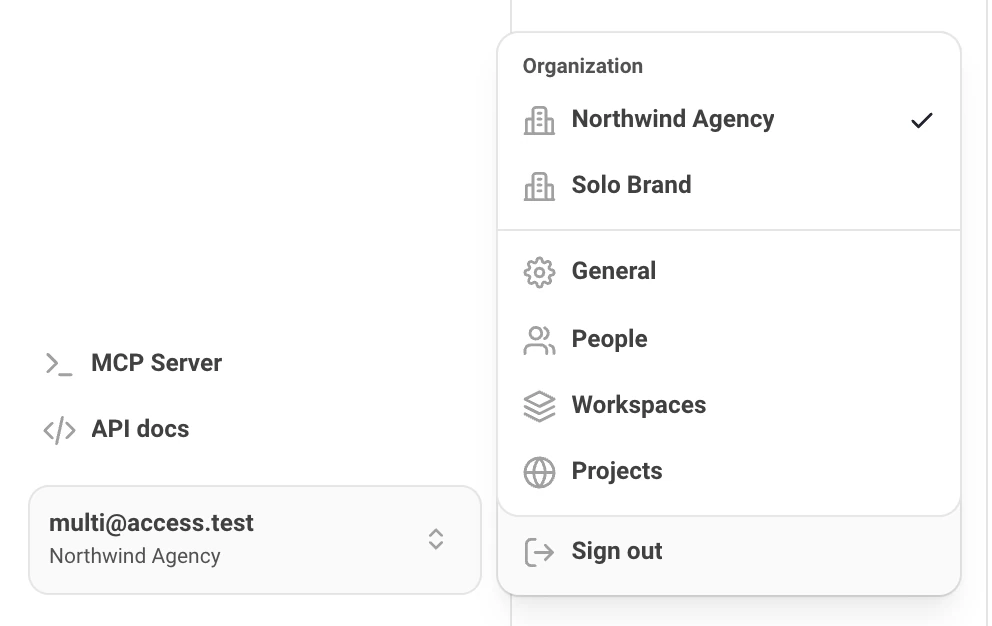
One email can belong to several organizations. The app always shows one of them, the current one. If you are in more than one, switch in the account menu at the bottom of the sidebar: the current organization has a tick, and its name is under your email.
Two kinds of access
Everyone gets one of two kinds of access, never both:
- The whole organization. One role across every workspace, including workspaces added later. This is for your own team.
- Selected workspaces. Access only to the workspaces you pick, with a role in each. This is for clients and freelancers. They do not see the other workspaces or the people of your organization.
Switching someone from one kind to the other replaces their access. There is no access to a single project: the smallest unit is a workspace.
Roles
| Role | Given on | What it means |
|---|---|---|
| Owner | Organization | Everything, including billing, transferring the organization and deleting it. There is exactly one owner. |
| Admin | Organization or workspace | Manages people, projects and settings. An organization admin is an admin of every workspace. |
| Editor | Organization or workspace | Edits projects: their settings, prompts and competitors. Does not manage people. |
| Viewer | Organization or workspace | Reads dashboards and reports. Changes nothing. |
| Billing | Organization only | The plan and its limits. No access to workspaces, projects or people. |
If someone has a role on the organization and another in a workspace, the higher of the two applies in that workspace.
What each role can do
Roles on the whole organization
| Action | Owner | Admin | Editor | Viewer | Billing |
|---|---|---|---|---|---|
| See dashboards and projects | Yes | Yes | Yes | Yes | No |
| See who has access | Yes | Yes | Yes | Yes | No |
| Edit a project | Yes | Yes | Yes | No | No |
| Add or delete a project | Yes | Yes | No | No | No |
| Add, rename or delete a workspace | Yes | Yes | No | No | No |
| Invite, change and remove people | Yes | Yes, except admins | No | No | No |
| Rename the organization | Yes | Yes | No | No | No |
| Leave the organization | After a transfer | Yes | Yes | Yes | Yes |
| Transfer, delete or restore the organization | Yes | No | No | No | No |
Roles in selected workspaces
These apply only inside the workspaces a person was given. They never reach the organization's settings, its other workspaces or its people.
| Action | Admin | Editor | Viewer |
|---|---|---|---|
| See the workspace's dashboards and projects | Yes | Yes | Yes |
| See who has access to the workspace | Yes | Yes | Yes |
| Edit a project | Yes | Yes | No |
| Add or delete a project | Yes | No | No |
| Rename the workspace | Yes | No | No |
| Invite, change and remove people | Yes, except admins | No | No |
| Leave the workspace | Yes | Yes | Yes |
Admins are the owner's to make. An organization admin invites editors, viewers and billing, and does not change or remove another admin. A workspace admin does the same inside their workspaces, and the organization's owner and admins manage the admins of a workspace.
Inviting people
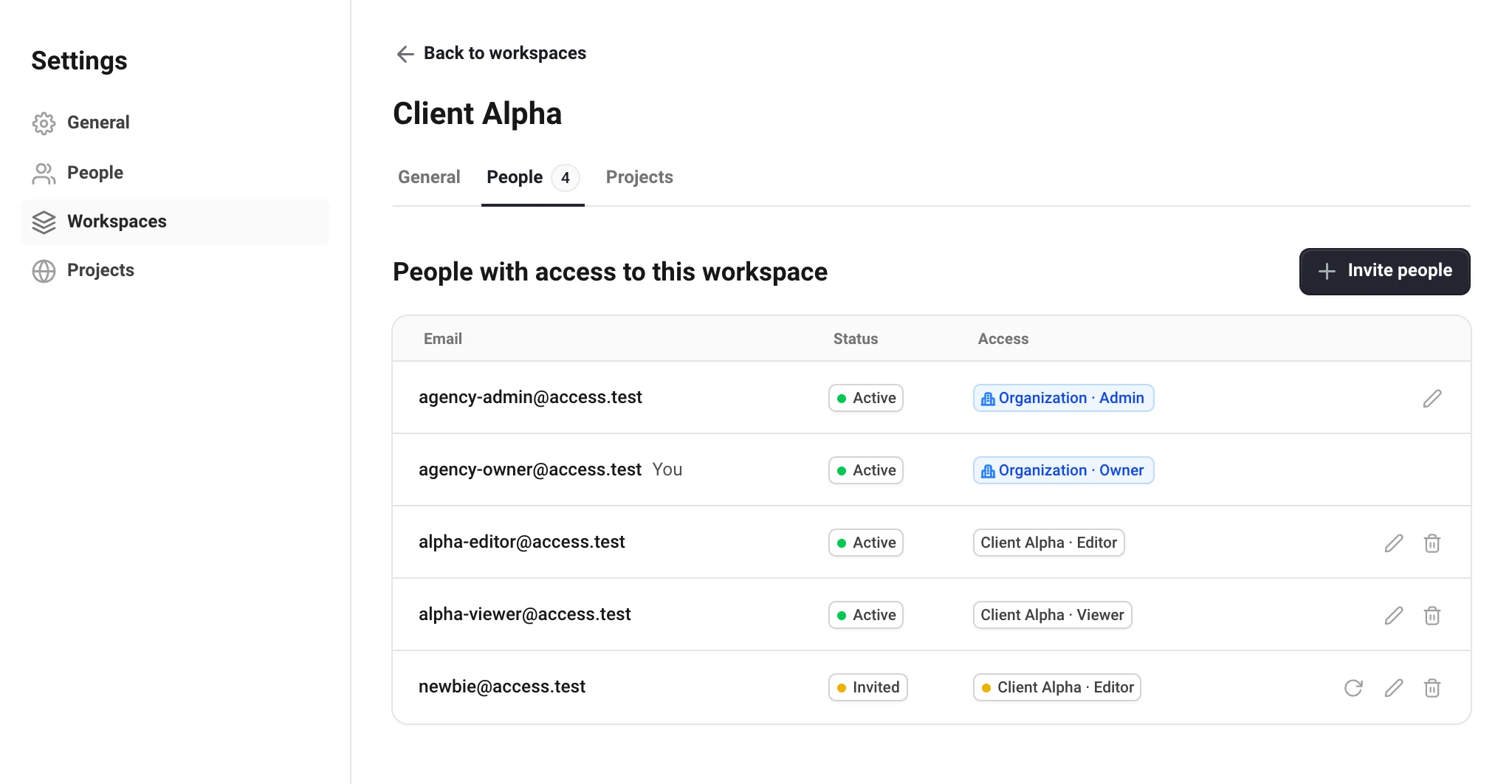
- Open Settings → People and choose Invite people. To invite straight into one workspace, use the People tab of that workspace instead: it is already ticked.
- Choose The whole organization with one role, or Selected workspaces with a role for each. The ? next to Role explains each role.
- Enter one or more email addresses and choose Send invites.
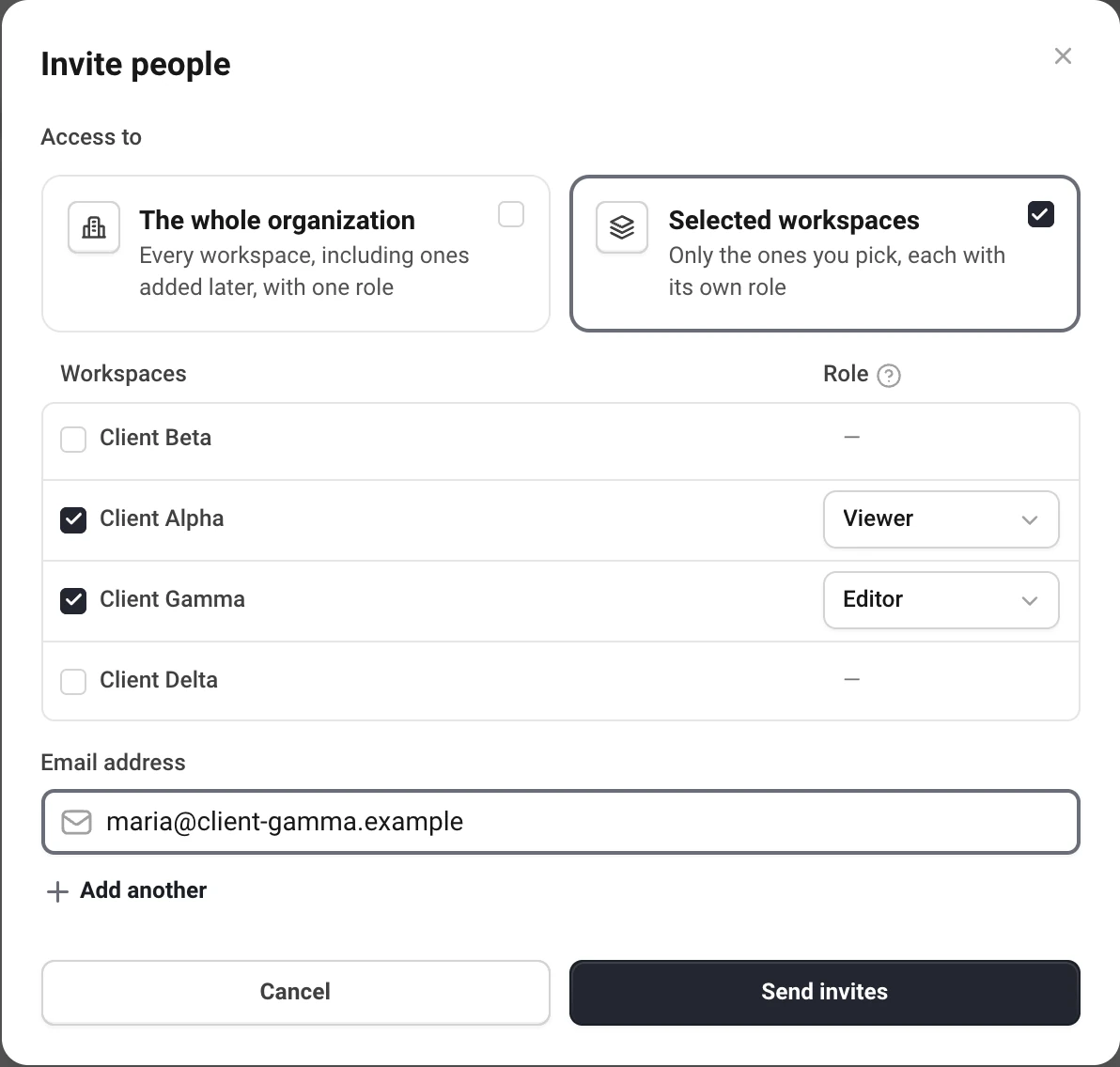
The person gets an email with one link. They accept with a code sent to the address you invited, whether or not they already have an account, so a forwarded link is no use to anyone else. The link works for 14 days. Open invitations also wait on the person's Settings → General page.
A few rules keep invitations predictable:
- Someone already in your organization is not invited again. The result says what access they have, and Edit access changes it on the spot.
- A new invitation to the same address replaces the open one. The person gets one email with one link.
- Send again resends the whole invitation with a new link, at most once a minute.
- Sending is limited to 50 invitations an hour per sender, 200 a day per organization and 3 a day per address.
Changing and removing access
Settings → People lists everyone with access to the organization and everyone invited. A blue badge is access to the whole organization, a grey one is a workspace.
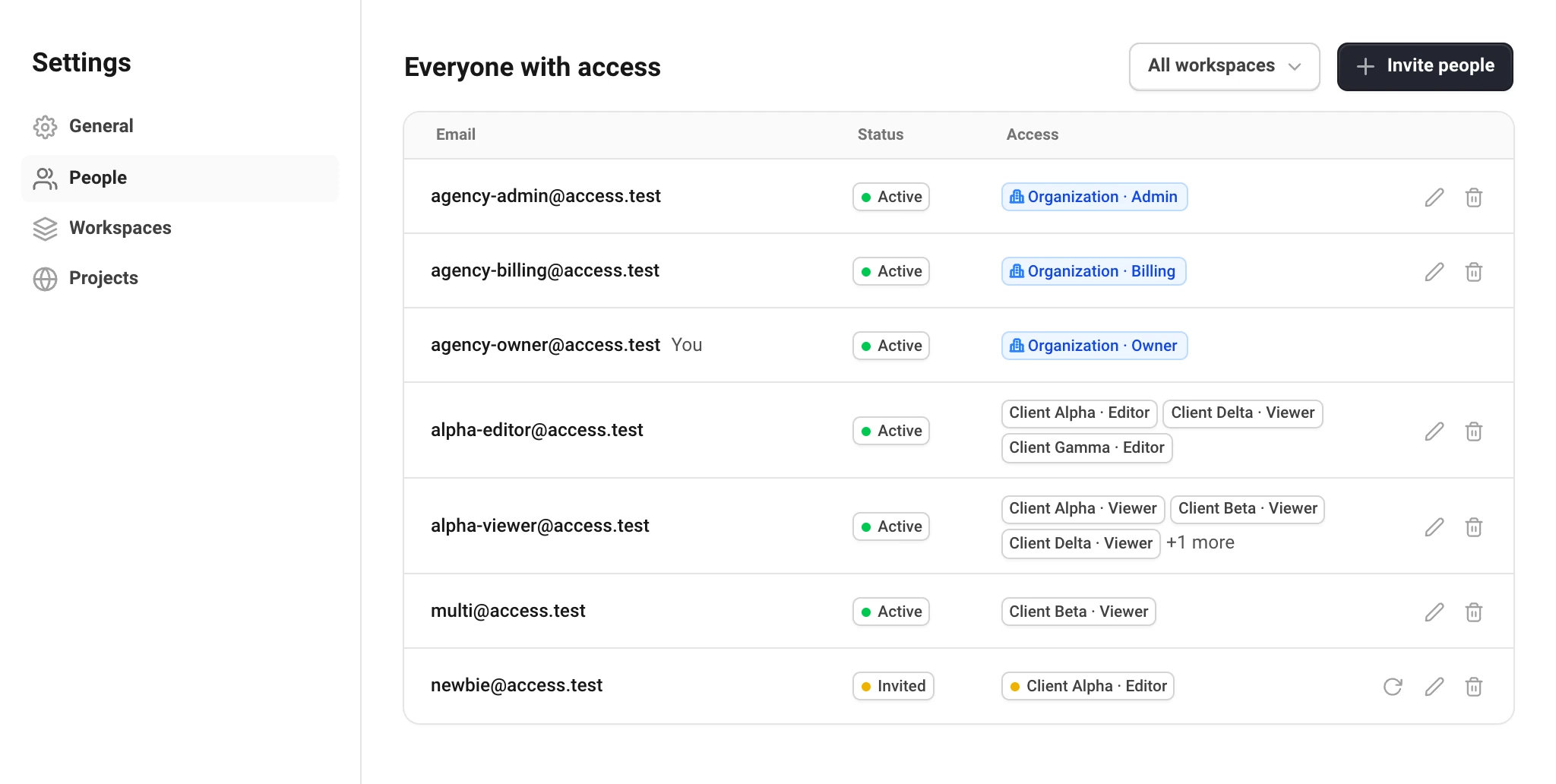
- The pencil opens the same window as the invitation, filled in with the person's current access. Change it and choose Update. For someone who has not accepted yet, saving sends a new invitation instead.
- The trash icon removes the person from the organization, with every workspace in it. On a workspace's People tab it removes them from that workspace only; people who reach the workspace through an organization role are removed on Settings → People.
- An invitation that has not been accepted can be sent again or revoked from the same row.
Nobody changes their own access or the owner's. To leave an organization, use Leave in Settings → General. To leave one workspace, use Leave on that workspace's General tab.
Agencies and clients
Give each client a workspace and invite their team to Selected workspaces. A client sees their workspace, its projects and its people, and nothing else of your organization: not your other clients, not your team, and not who on your side sent the invitation. Make a client an editor if they should change their prompts and competitors, or a viewer if they should only read the reports.
The owner
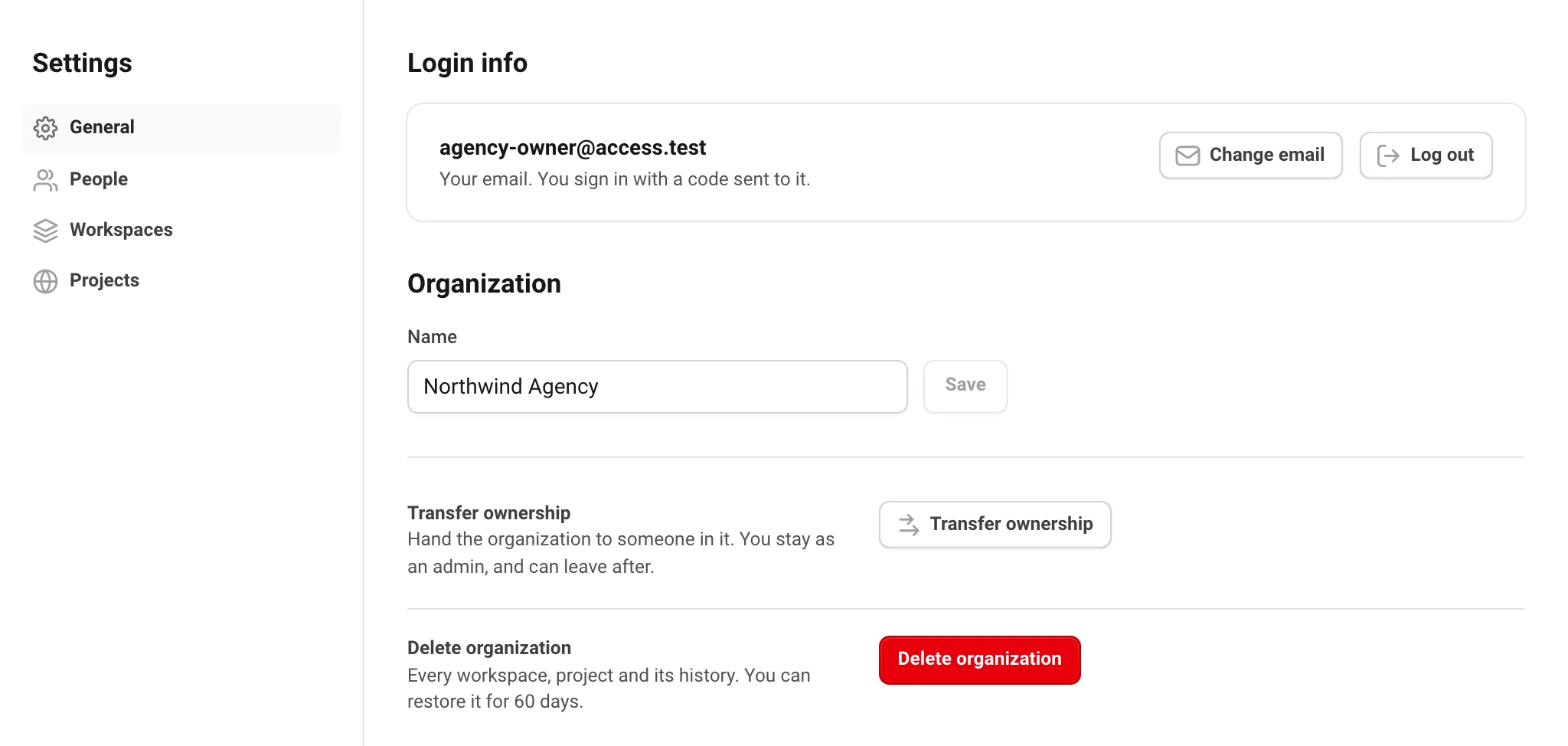
Every organization has exactly one owner. The owner cannot leave or change their own role. To hand the organization over, use Transfer ownership in Settings → General: choose someone who is already in the organization and confirm with a six-digit code sent to your email. They become the owner at once, you become an admin, and you can leave afterwards.
Deleting workspaces, projects and organizations
- A project or a workspace is deleted at once, with its history. You confirm with a code sent to your email. Workspace admins delete projects; only the owner and organization admins delete workspaces.
- An organization is deleted by its owner: type its name and enter the code from your email. Tracking stops, nothing in it can be changed and open invitations are cancelled. For 60 days the owner can restore it from Settings → General. After that it is deleted for good.
Codes expire after 10 minutes and allow five attempts. If a code does not arrive, choose Send another code: the newest one is the one that works.
Still have a question?
Write to hello@askwatch.ai. A person answers.